Check text, media and formatting on your own phone first with the Test Message tool.
Getting started2 min readUpdated:
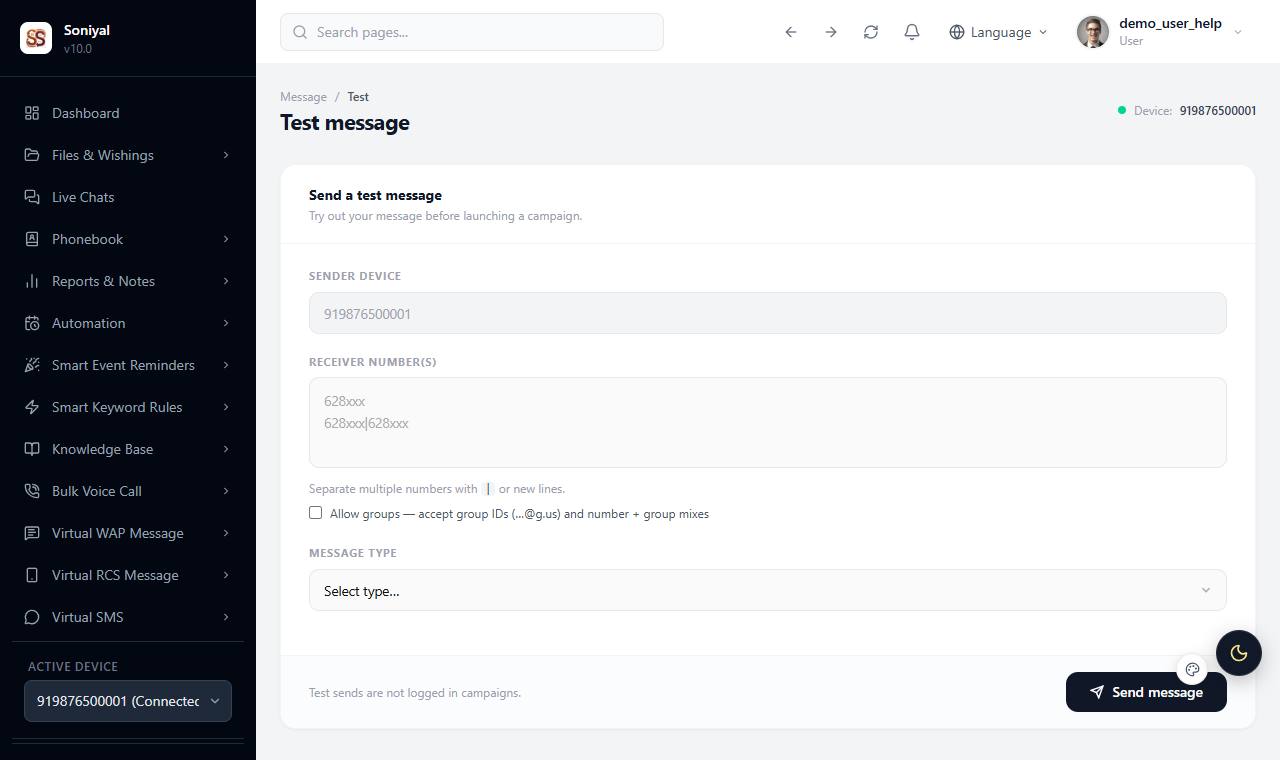
Test Message sends one message through your selected device to any number you type — usually your own. It is the safest way to see exactly how a message, image or document will look before it goes to hundreds of people.
When to use it
Every time you write a new campaign text, attach a new image or change formatting.
Example
Before sending a Diwali offer to 2,000 customers, Meena sends it to her own number, notices a broken link, fixes it and only then launches the campaign.
Pro tips
Send to a second personal number too, so you see the message as a stranger would.
Use the same tags (like {name}) you will use in the campaign to see how they fill in.
Step by step
Select the device
Make sure the right WhatsApp number is chosen under ACTIVE DEVICE.
Open Test Message
Go to Manage WhatsApp → Test Message in the left menu.
Enter the receiver
Type the full number with country code, for example 919876543210.
Write or attach
Type your text, or attach an image, video or document if you want to test media.
Send and check
Press Send and look at your phone: line breaks, emojis, links and the image should look the way you expect.
Frequently asked questions
Does a test message cost anything?
It uses your normal sending allowance like any other message.
Why did it not arrive?
Check that the device is Connected and that the number includes the country code.