Custom Gateways: SMS and voice routes assigned to you
Use the SMS / voice gateways your admin gave you: compose, queue, sent, templates and outcome rules.
Voice & SMS1 min readUpdated:
A gateway is a messaging route such as Bulk SMS or an OTP route. Each gateway you are allowed to use gets its own menu entry in the left sidebar with Compose, Queue and Sent pages.
When to use it
When you send SMS or voice messages through a provider connected by your admin.
Example
A school sends “Fee due on 10th” through the Bulk SMS gateway using an approved template.
Pro tips
Use approved templates exactly as approved.
Watch your wallet balance — gateways charge per message.
Step by step
Find your gateway
Look for the gateway name in the left menu.
Compose
Open Compose, enter the numbers and message (or choose an approved template).
Check the Queue
See what is waiting and what is being processed.
Read Sent
Review delivery results and export them.
Use templates
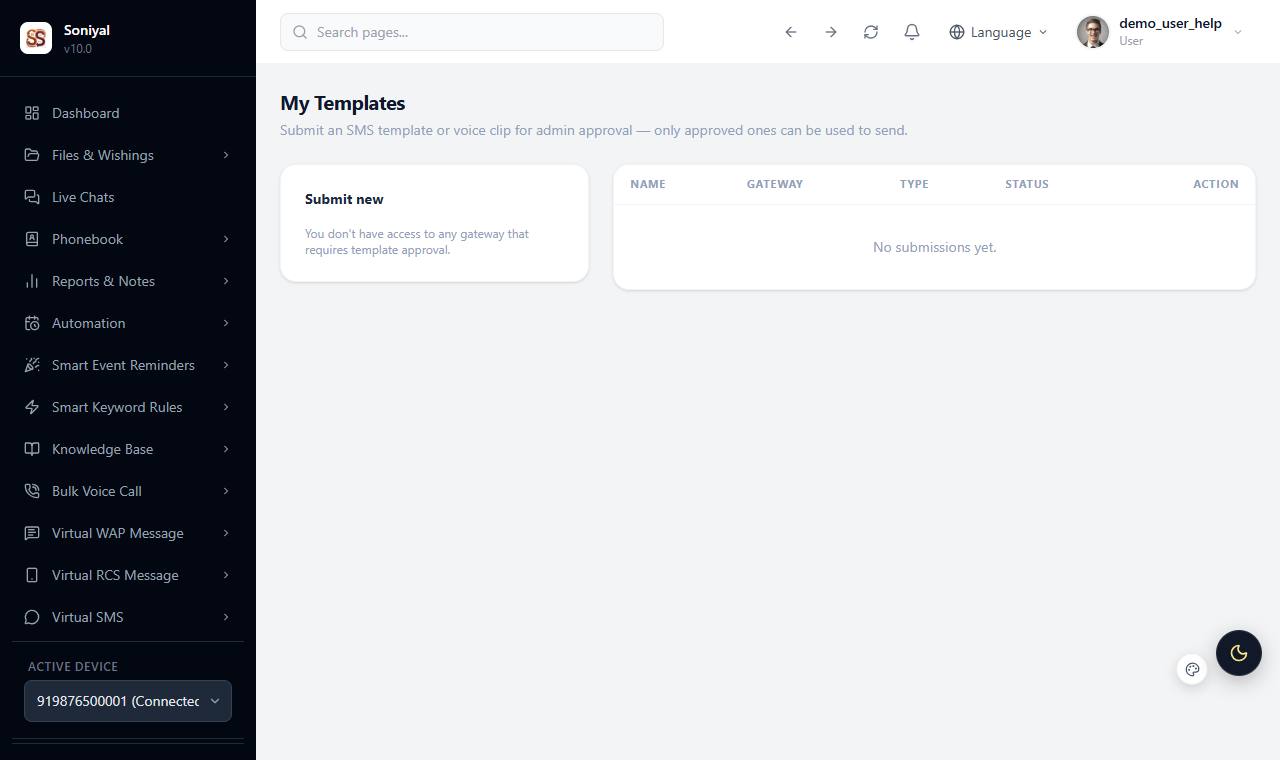
Where the provider needs approval, create and wait for approval under My Templates.
Set preferences
Use Keypress Automation, Failover Preferences or Outcome Automation when shown.
Frequently asked questions
Why is a gateway not in my menu?
Your account may not have access; ask your admin.
What is failover?
If one route fails the system can try another according to your preference.