Read and answer customer messages from the dashboard, with media, scheduling and notifications.
Live chat1 min readUpdated:
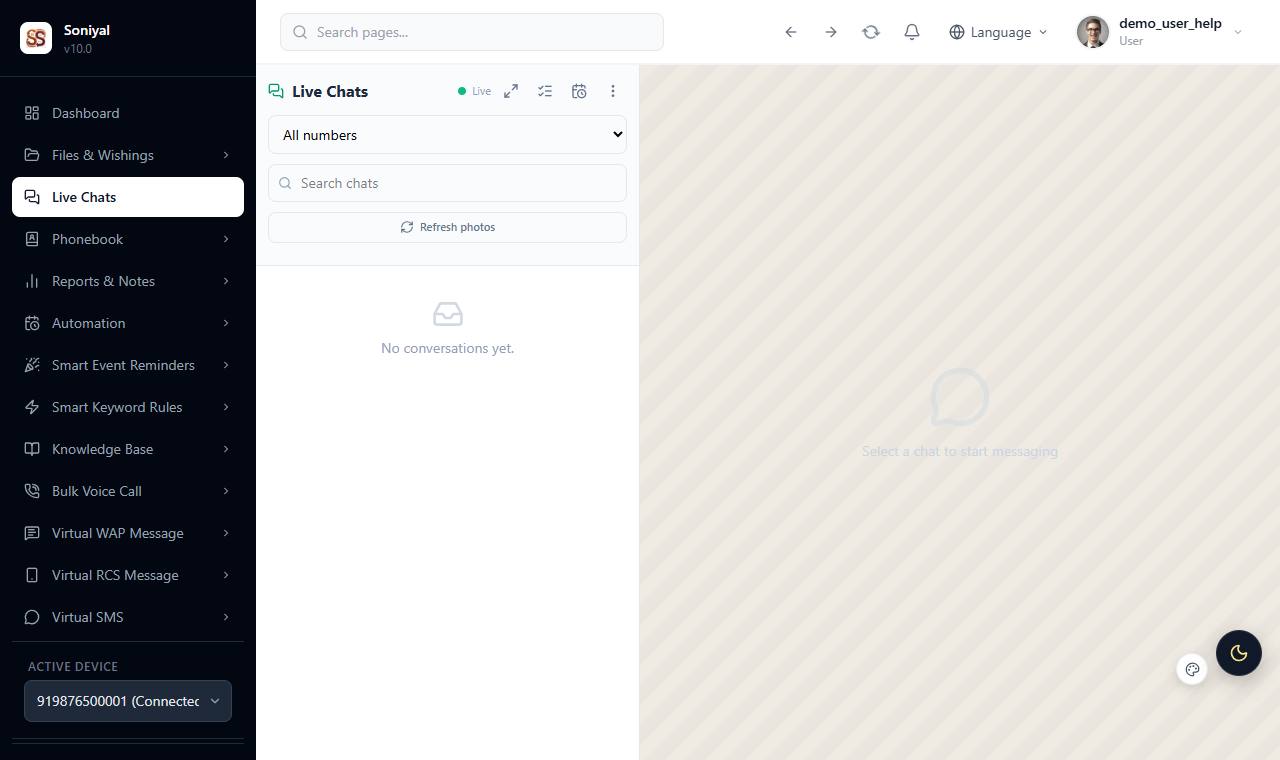
Live Chats shows every conversation on your connected numbers in one inbox. Messages appear instantly, you can reply with text and media, schedule a message for later and get a notification when someone writes.
When to use it
Customer support and sales conversations that need a human touch.
Example
A customer asks “Is the red one in stock?” at night. You reply in the morning and schedule a “Thanks for visiting!” message for the afternoon.
Pro tips
Use Message Templates for repeated answers.
The bell only controls Live Chat notifications — other alerts are managed in Notifications.
Step by step
Open Live Chats
Click Live Chats in the left menu; the conversation list loads on the left.
Select a conversation
Tap a contact to open the chat on the right.
Reply
Type a message, attach a picture or file, or send a voice message.
Schedule a message
Use the schedule option to send a message at a later time.
Turn notifications on
Use the bell in the top bar to get a push for every new message on this device.
Go back
On a phone the Back button closes the chat and returns to the list.
Frequently asked questions
Why do I see no chats?
Select a connected device, or check that Live Chat is enabled for your account.
Are media files stored forever?
Media follows the cleanup and storage rules set by your admin.
Ready to try it yourself?
Create a free account and connect your first WhatsApp number in minutes.