Auto Reply: a welcome message and keyword replies
Greet new contacts automatically and answer common questions without typing.
Automation 1 min read
Updated: 20 Oct 2026
Copy link
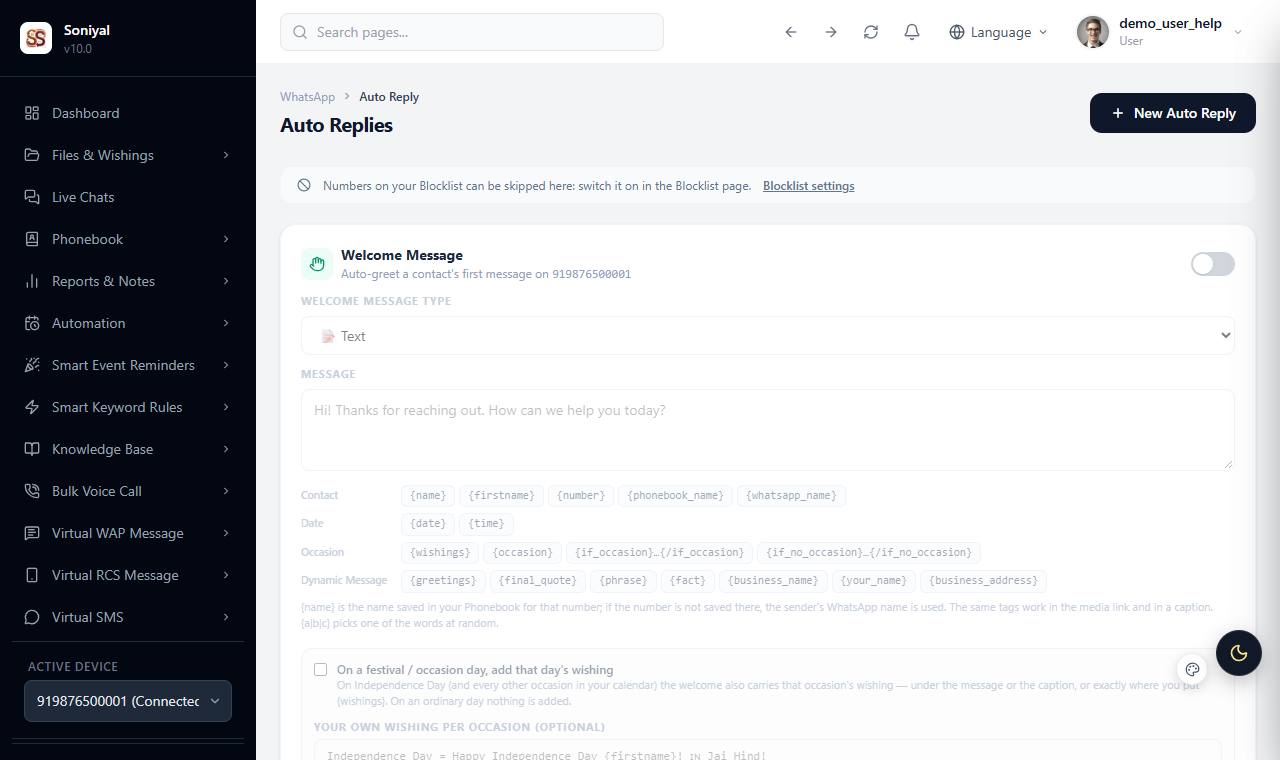
Auto Reply answers for you. The Welcome Message greets someone on their first message, and keyword replies answer when a message contains a word you chose. Tags such as {name} make each reply personal.
When to use it Shop opening hours, prices, address, “how to order” — anything customers ask repeatedly.
Example Keyword “price” replies with your price list image; the welcome message says “Hi {firstname}, thanks for contacting Sharma Mart!”. Pro tips Keep replies short and end with a clear next step. Use Dynamic Message tags to vary greetings. Test by messaging the number from another phone. Step by step
Select the device Auto Reply works per connected number; choose it under ACTIVE DEVICE.
Open Auto Reply Go to Manage WhatsApp → Auto Reply.
Set the Welcome Message Switch it on, choose Text (or media) and write the greeting. Click tags like {name} to insert them.
Add festival wishes Optionally tick “On a festival / occasion day, add that day’s wishing”.
Create keyword replies Press New Auto Reply, type the keyword and the reply, and save.
Respect opt-outs Switch on the blocklist so numbers on your Blocklist are skipped.
Frequently asked questions
Why did nobody get a reply?
Check that the device is Connected and the auto reply is switched on.
Can one keyword trigger a picture?
Yes, choose an image or document as the reply type.
Ready to try it yourself?
Create a free account and connect your first WhatsApp number in minutes.
Start free