Keep your best messages — text, images, documents and dynamic images — and reuse them in campaigns and automation.
Send messages1 min readUpdated:
A template is a ready-made message you saved. Instead of typing the same offer again you pick it from the list, so your wording stays consistent and your work gets faster.
When to use it
For messages you send again and again: welcome text, price list, payment details, festival greetings.
Example
A salon saves “Price list” (image) and “Booking confirmation” (text) and picks them in two clicks whenever a customer asks.
Pro tips
Name templates by purpose, e.g. “Welcome – new customer”.
Keep a short and a long version of important offers.
Step by step
Open Message Templates
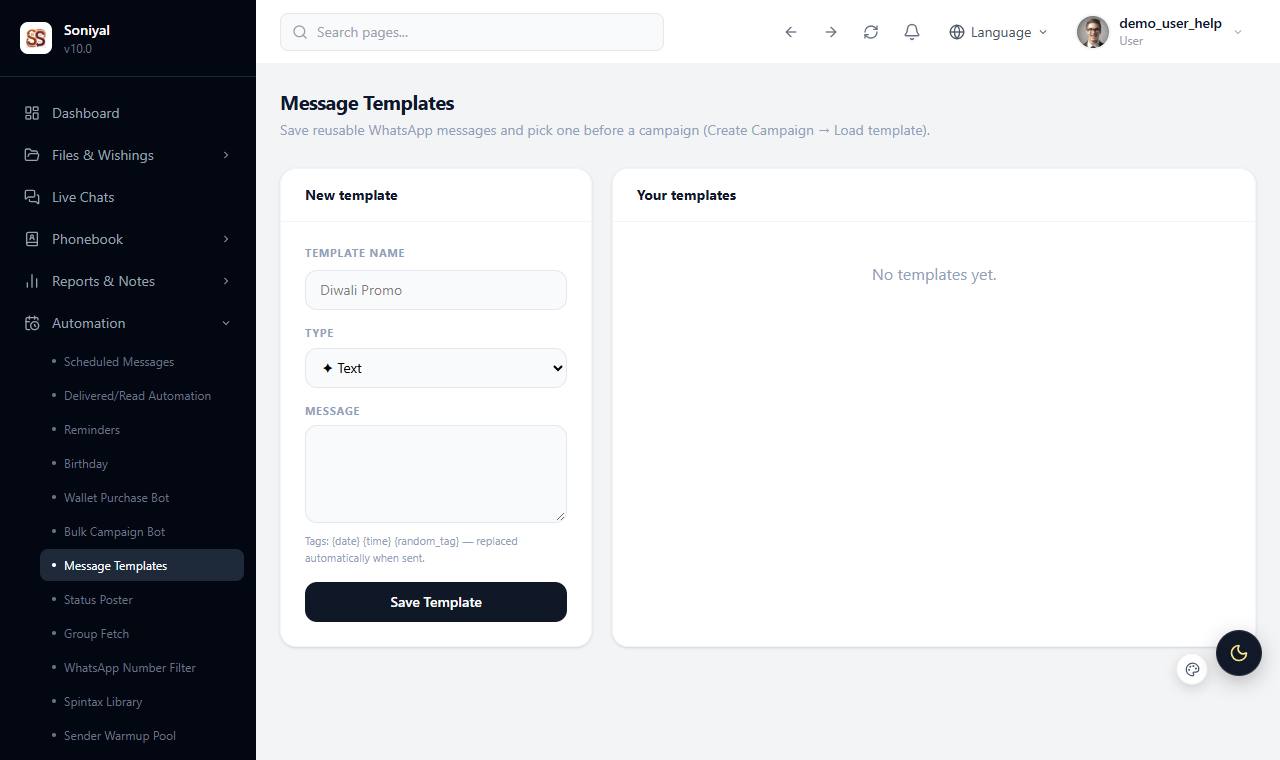
Go to Automation → Message Templates.
Create a template
Choose the type (text, image, document or dynamic image/PDF) and give it a clear name.
Write the content
Add the text and, if needed, the media file. Use tags such as {name} where the contact’s name should appear.
Save
The template appears in your list and is available when you build campaigns and automations.
Edit or delete
Open a template to update it; changes apply to future sends.
Frequently asked questions
Can I use a template in an auto reply?
Yes, the same templates can be picked where a message or media is asked for.
Do templates need WhatsApp approval?
No, these are your own saved messages, not WhatsApp business templates.