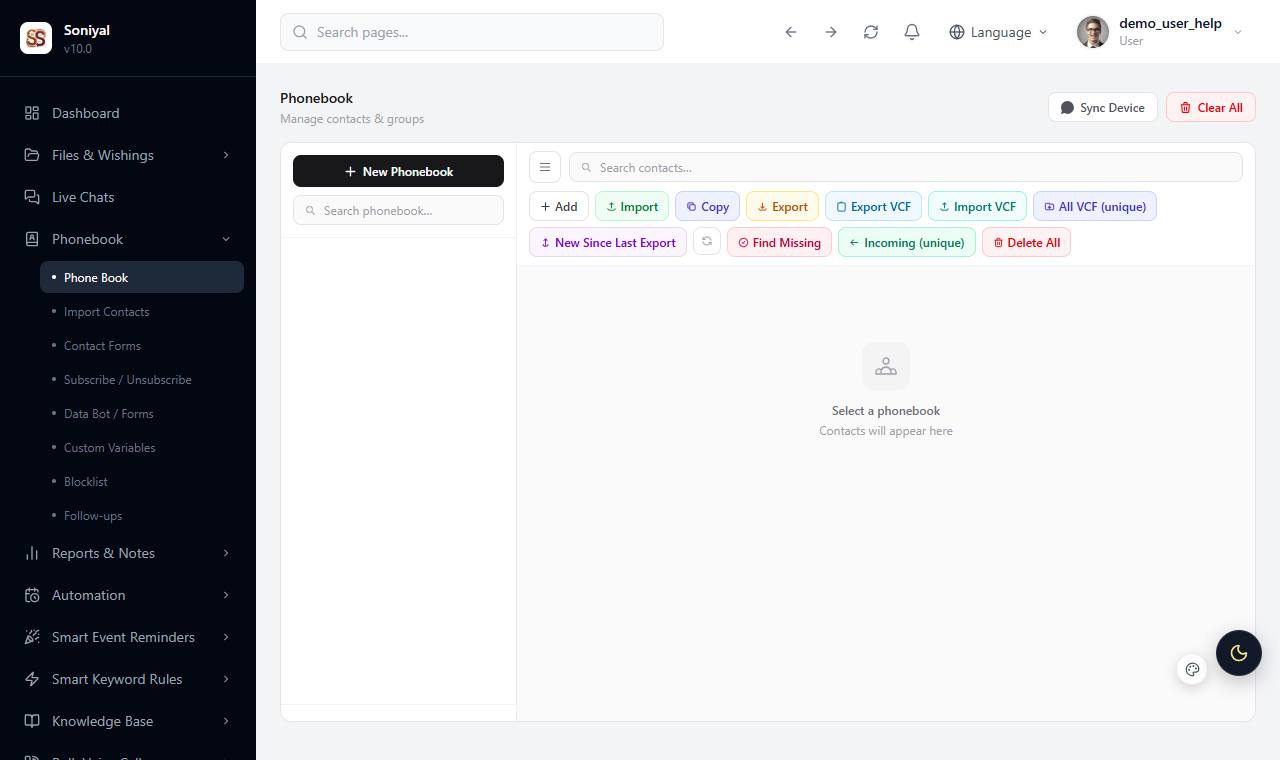
Create phonebooks, add or import contacts, export vCards and keep your lists clean.
Contacts2 min readUpdated:
The Phonebook is where all your contacts live, grouped into phonebooks such as “Customers”, “Leads” or “Students”. Campaigns, automations and reminders pick their recipients from these phonebooks.
When to use it
Before any campaign — build and clean your list here first.
Example
A tuition centre has phonebooks “Class 9”, “Class 10” and “Parents”. Fee reminders go to “Parents”, test schedules go to the class phonebooks.
Pro tips
Use several small phonebooks instead of one huge list — targeting gets easier.
Export a backup before you use Delete All.
Add custom variables (city, plan) so messages can be personal.
Step by step
Create a phonebook
Press New Phonebook, give it a name and save. Search phonebooks in the left column.
Add contacts
Select the phonebook and press Add for a single contact, or Import for many at once.
Use the tools
Copy moves contacts, Export / Export VCF download them, Import VCF loads a vCard file, Find Missing shows contacts without a number or name.
Collect incoming
“Incoming (unique)” lists people who messaged you so you can save them as contacts.
Sync your device
Sync Device pulls contacts from the connected WhatsApp number.
Keep it clean
Delete duplicates and dead numbers regularly; Delete All clears a phonebook completely.
Frequently asked questions
Is there a limit on contacts?
Your plan and admin settings decide the limits.
Can the same number be in two phonebooks?
Yes, but campaigns skip duplicates within the same send.